


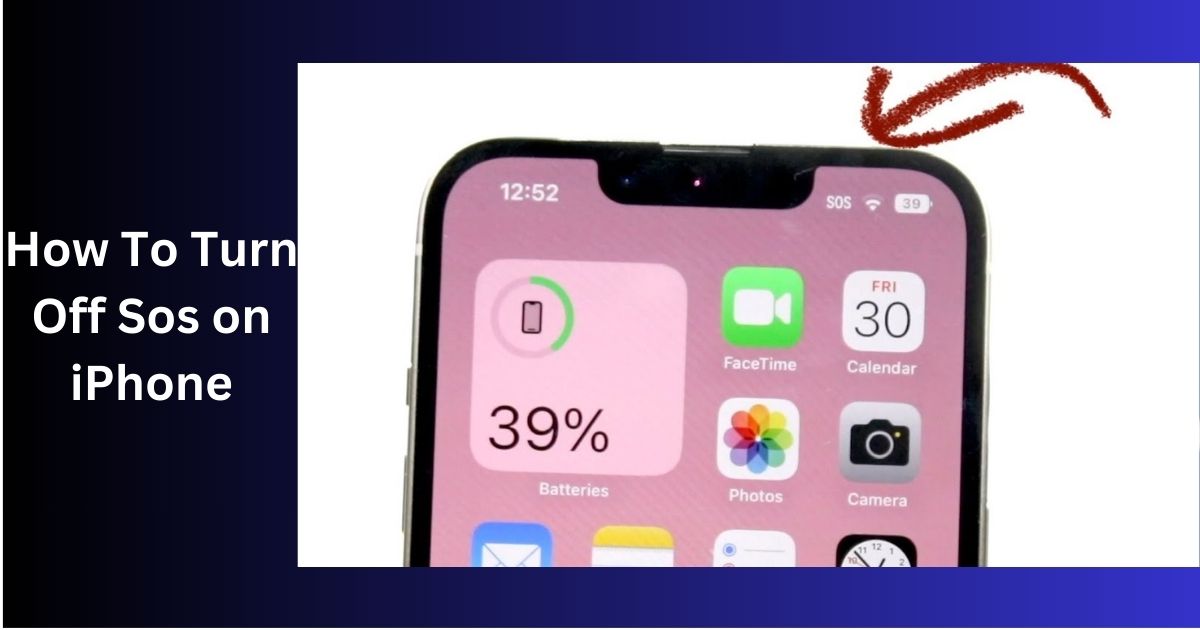
The SOS feature on an iPhone allows you to quickly get help in emergencies.
The SOS on the iPhone is a tool that allows users to quickly request emergency assistance. It can automatically call emergency services, share your location, and display your Medical ID when activated.
How to turn off Emergency SOS on an iPhone – Easy steps!
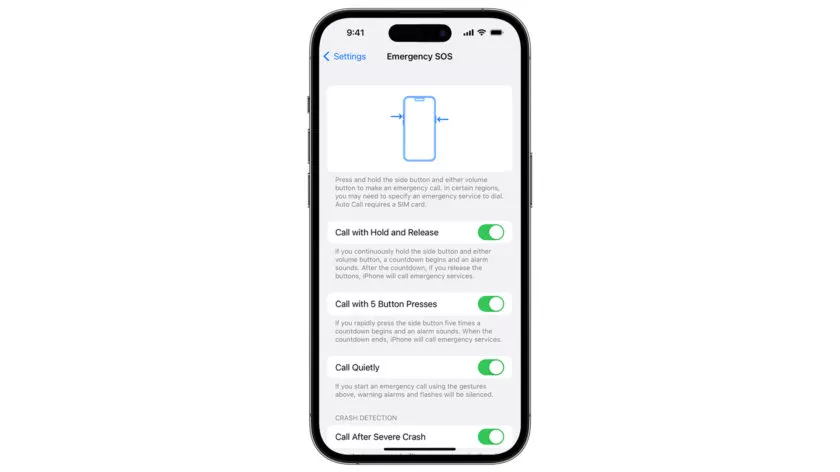
While there isn’t a universal switch to disable the Emergency SOS feature on your iPhone, you can achieve a similar result by deactivating all its activation options in the Settings app.
- Go to Settings > Emergency SOS.
- To disable manual shortcuts, turn off “Call with Hold and Release” and “Call with 5 Button Presses.”
- To deactivate automatic Crash Detection calling, turn off “Call After Severe Crash” (Note: Only iPhone 14 and later models have this option).
It’s important to note that, despite these settings changes, Emergency SOS can still be launched through the power-off screen.
To access this screen on most iPhones (excluding those with a home button), simultaneously hold the side button and one of the volume buttons. Swipe the Emergency SOS slider to initiate a call.
What “SOS only” means on an iPhone, and how to get rid of it – Take a look over them!
If your iPhone shows “SOS” or “SOS only” in the status bar, it means regular cellular service is not available.
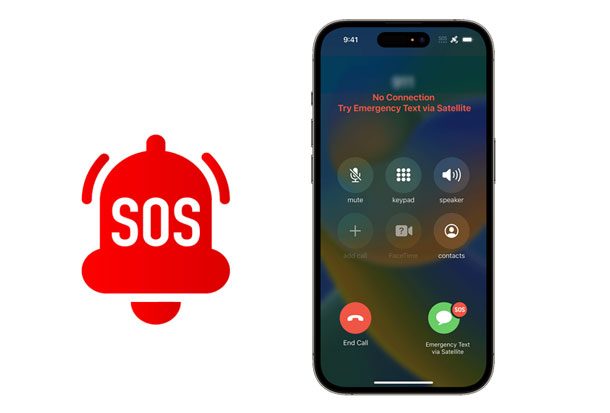
In this situation, you can still make emergency calls like 911 or send satellite alerts if you have an iPhone 14 or newer. If there’s nearby working Wi-Fi and you have the login information, you can use that too.
To fix this issue:
- Go to Settings > Cellular and turn off Cellular Data for 10 seconds, then turn it back on.
- If you’re traveling, go to Settings > Cellular > Cellular Data Options and make sure Data Roaming is enabled (unless you’re concerned about roaming fees).
- If your iPhone still uses a physical SIM card, try taking it out, checking for damage, and putting it back in if it’s okay.
- Restart your iPhone.
If these steps don’t help and you’re in an area with supposed good signal coverage, consider moving to a location with better cellular reception.
Step-by-step guide to disabling SOS on iPhone – let’s learn and succeed!
- Accessing the settings menu: Okay, now let’s take a breather from potential accidental emergency calls and disable the SOS feature.
First, locate your trusty settings app on your iPhone’s home screen. It’s the one that looks like a gear. You can’t miss it.
- Navigating to the SOS settings: Once you’re in the settings menu, scroll down a bit and tap on “Emergency SOS.” It should be there, waiting for you like a hidden treasure.
- Disabling the SOS: Now that you’re in the SOS settings, you’ll see a switch for “Call with Side Button.” Just toggle it off, and you’re good to go! No more accidental emergency calls during your selfie sessions.
Understanding the SOS activation process – learn and grow!
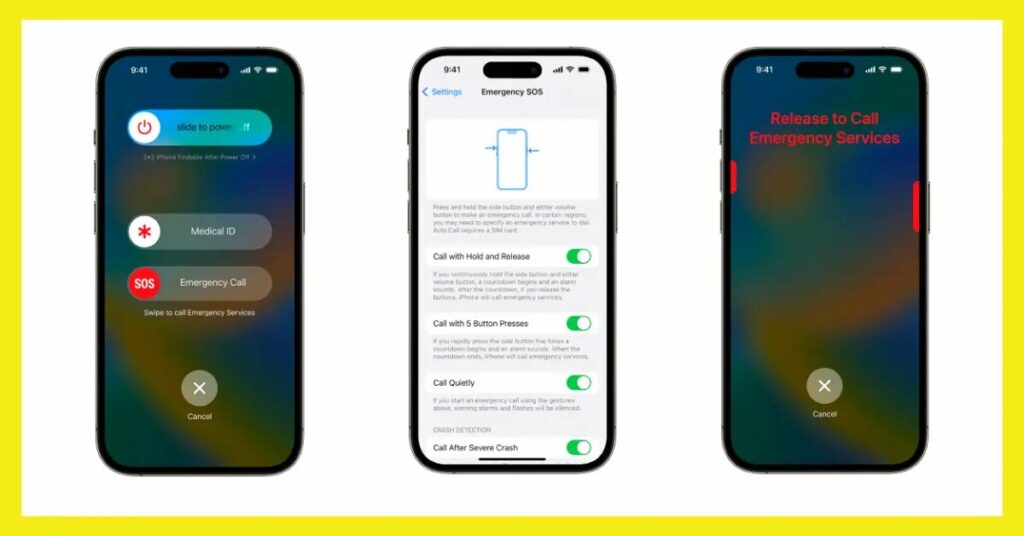
1. How does the SOS work?
When you’re in a pinch and need help pronto, the SOS feature is your go-to hero. By pressing the power button and one of the volume buttons simultaneously, your iPhone will initiate a countdown and then automatically call emergency services.
2. Activating SOS on iPhone:
To activate the SOS feature, calmly press the power button and one of the volume buttons together. Wait for the countdown to finish, and voila, help is on the way.
3. Understanding the emergency call process:
In the event of an emergency, your iPhone will automatically call the local emergency services number based on your location. It’s essential to remember that your phone must have an active cellular connection or Wi-Fi to make an emergency call.
Exploring alternative emergency contact options – we can achieve more!
1. Setting up emergency contacts:
Since we’ve disabled the SOS feature, it’s essential to have alternative emergency contacts set up. To do this, go back to the settings menu and scroll down to “Emergency Contacts.”
Add the names and numbers of your trusted people, so they can be there for you when you need them.
2. Utilizing Medical ID:
While you’re in the settings menu, take a moment to explore the Medical ID section. Fill in important details about your health, allergies, and any medications you take.
This information can be accessed even when your phone is locked, providing crucial information to medical professionals during emergencies.
3. Accessing the emergency call function without SOS:
Now, without the SOS feature, you can still call for help in emergencies. Simply press the power button five times quickly, and your iPhone will present you with an emergency call option.
With these alternative emergency contact options in place, you can have peace of mind knowing that you’re always prepared for unexpected situations without accidentally calling for help during your everyday activities. Stay safe and selfie with confidence!
Customizing emergency settings on your iPhone – One must know!
So you’ve been accidentally triggering the SOS on your iPhone one too many times. Don’t worry, we’ve all been there! Thankfully, Apple has provided us with some nifty ways to customize our emergency settings and avoid those embarrassing false calls to the authorities.
1. Adjusting emergency alerts:
Emergency alerts can be a real lifesaver, but sometimes they can be a bit too much. To adjust the way your iPhone notifies you during emergencies, head to Settings, then tap on Notifications. Scroll down until you see Government Alerts.
From here, you can toggle off the types of alerts you don’t want to receive, like AMBER alerts or severe weather warnings.
2. Managing location services during emergencies:
When you make an emergency call, responders need to know where you are. But fear not, you don’t have to expose your location to every app on your phone.
To manage location services during emergencies, go to Settings, then tap on Privacy. From there, select Location Services and scroll down to find the section called System Services.
3. Configuring Do Not Disturb while driving:
We all know how tempting it is to reach for our phones while driving, but it’s also incredibly dangerous. Luckily, Apple has a clever feature called Do Not Disturb while driving that can help you stay focused on the road.
Troubleshooting common issues with the SOS feature – Take analysis!
1. SOS feature not responding:
- If you find that the SOS feature on your iPhone is not responding when you need it, there are a couple of things you can try.
- First, make sure you have the feature enabled by going to Settings, tapping on Emergency SOS, and checking that “Call with Side Button” is toggled on.
- If it’s already enabled and you’re still having issues, try restarting your iPhone. Sometimes, a good ol’ reboot can work wonders. And if all else fails, reach out to Apple Support for some expert advice.
2. Accidental SOS activations:
- Accidentally triggering the SOS feature can be a real headache. To avoid those embarrassing mistaken calls to emergency services, you can change the settings for the Emergency SOS feature.
- Again, head to Settings, tap on Emergency SOS, and disable “Auto Call.” This way, you’ll need to confirm the call before your iPhone dials emergency services. No more frantic apologies to dispatchers for crying wolf!
3. Dealing with False Emergency Calls:
- Sometimes, our iPhones can get a little too trigger-happy and make false emergency calls without us even realizing it. If this happens to you, don’t panic. Simply explain the situation to the emergency services and let them know it was an accidental call.
- They’re used to dealing with these types of situations, and they’ll understand. Just be sure not to make a habit out of it, or they might start sending a rescue team every time you drop your phone.
Safety considerations when turning off SOS on iPhone – learn something amazing!
While it’s convenient to turn off the SOS feature if you keep accidentally activating it, it’s important to consider the potential risks and take some precautions.
- Understanding the potential risks: Disabling the SOS feature means you won’t have instant access to emergency services in dire situations. So, it’s crucial to assess the potential risks and make an informed decision.
- Informing necessary contacts: If you decide to turn off the SOS feature, it’s a good idea to inform your close friends, family, or emergency contacts about this change.
That way, if they can’t reach you and become concerned, they’ll know that it’s not because you’re in danger but because you disabled the feature deliberately.
- Training for emergencies: Lastly, even if you turn off the SOS feature, it’s important to be prepared for emergencies. Consider taking a first aid or CPR course to equip yourself with life-saving skills.
Frequently Asked Questions:
1. Can I disable the SOS temporarily?
Yes, you can disable the SOS temporarily on your iPhone. The article provides a step-by-step guide on how to access the SOS settings and disable them.
2. Will disabling the SOS affect other emergency contact options?
No, disabling the SOS does not affect other emergency contact options on your iPhone. You can still set up emergency contacts, utilize the Medical ID feature, and access the emergency call function without relying on the SOS.
3. What should I do if I accidentally activate the SOS?
If you accidentally activate the SOS feature on your iPhone, don’t panic. The article addresses common issues and provides troubleshooting tips for dealing with accidental activations.
4. Are there any risks associated with disabling the SOS feature?
While disabling the SOS is a personal choice, it’s important to understand the potential risks. The article discusses safety considerations and highlights the need to communicate any changes to your emergency contacts.
In a nutshell:
In short, if you’re thinking about turning off the SOS feature on your iPhone, whether for a long time or just temporarily, it’s important to find a balance between getting help quickly in emergencies and choosing what works best for you.
Read Also: